Call recordings are summarised and filed on the customer file in one tap
Put a call's recording on the customer file and it is transcribed and summarised, with the outcome and the next stage, deal value and follow-up date it suggests. Connect Issabel, Asterisk or a cloud PBX too: an incoming call opens the caller's file for the colleague whose extension rang, and every call is logged by itself.
Product update 3 min read
What changed
Until now every phone call had to be typed into the file again by hand. Now:
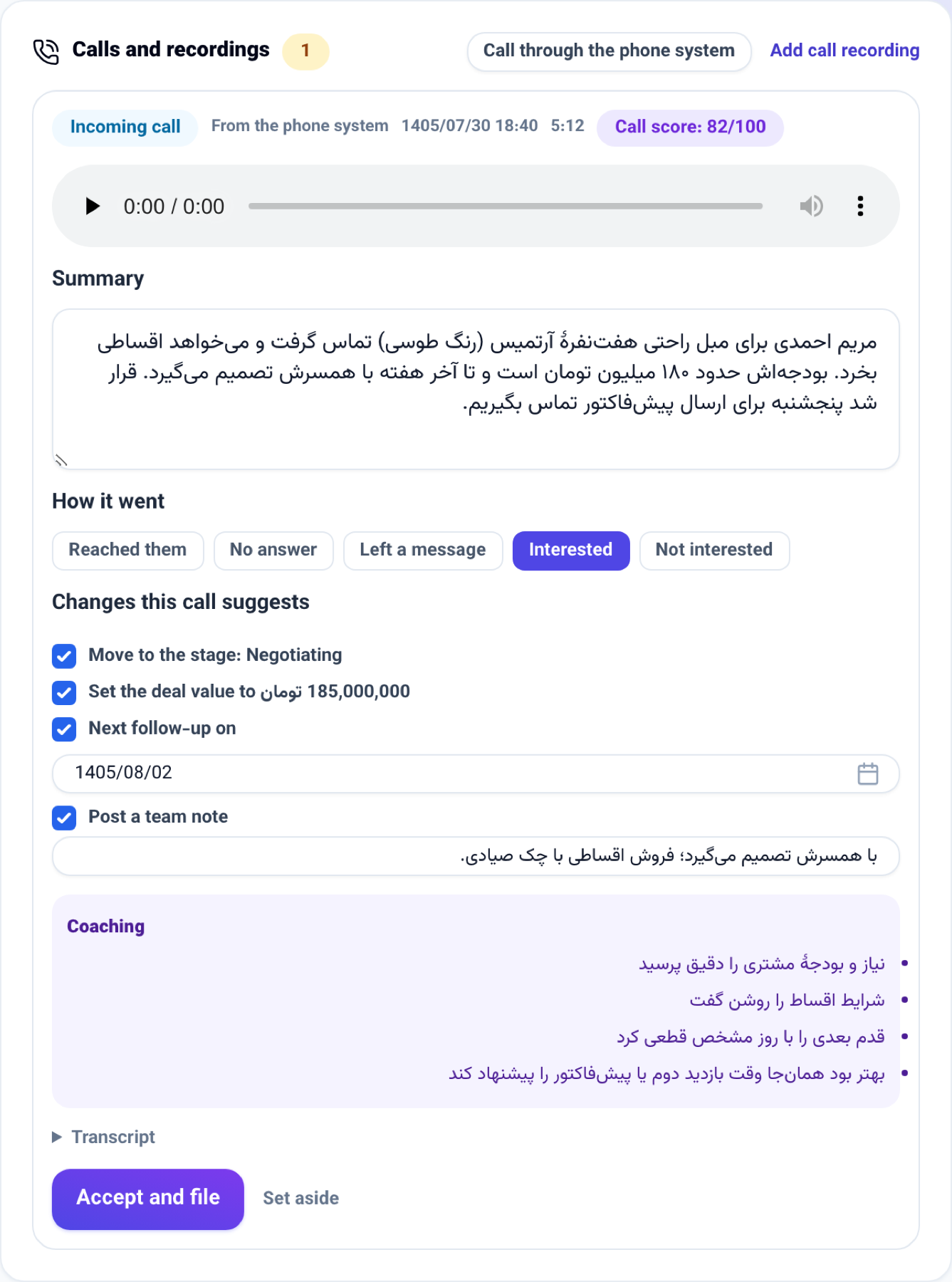
- Every customer file has a Calls and recordings section. Add a call's recording and it is transcribed into a review card: a summary of the conversation, how it went, and the changes the call suggests — moving to another pipeline stage, a deal value, the next follow-up date and a note for the team.
- Nothing is written on the file until you press Accept and file. Each suggestion has its own tick, and the summary can be edited before it is filed.
- Each call gets a score out of 100 with its reasons: what went well and what to do better. Each rep's average shows on their own page under Sales team.
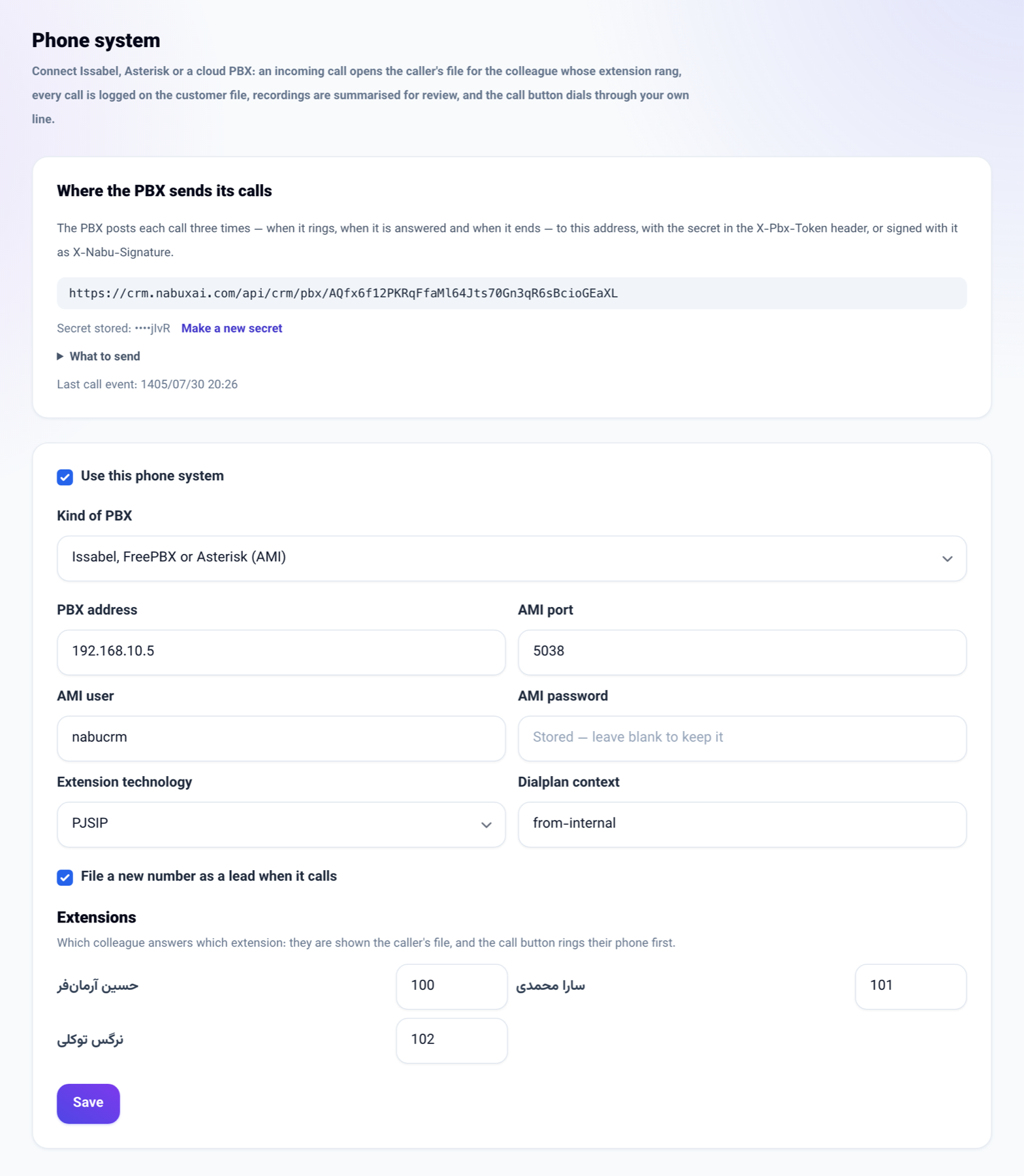
- Connect the business's PBX (Issabel, FreePBX, Asterisk or a cloud PBX). An incoming call opens the caller's file for the colleague whose extension rang, every call is logged on the file when it ends, and when the PBX sends a recording the same review card is made. The call button dials from the company's own line.
- In the phone app, when you dial from a customer's card and come back to the app, it asks "Log this call?" and logs the outcome in one tap.
How to use it
A recording on the customer file
- Open the customer's file.
- At the top of the conversation column, open Calls and recordings and then Add call recording.
- Pick the call's file, say who called and when, then press Upload and summarise.
- A minute or two later the call card appears with its summary and suggestions. Untick what you do not want and press Accept and file.
Connecting a PBX
-
Go from Connections book to Phone system and press Set up the phone system.
-
Put the secret, shown once, into the PBX. The address the PBX posts calls to is on the same page.
-
Pick the kind of PBX: for Issabel or Asterisk write the AMI address, user and password; for a cloud PBX its API address and key.
-
Under Extensions write each colleague's extension, tick Use this phone system and save.
Good to know
- A recording can be up to 25 MB, as MP3, M4A, WAV, OGG, WEBM or AAC. Android's AMR recordings must be converted to one of these first.
- Transcribing and summarising use the business's AI credit. Without AI the card still comes, and you write the outcome and summary yourself.
- Moving a stage keeps the pipeline's rule: a lead still in play needs a next follow-up date.
- Only a seat that may change customers changes the stage and deal value from the card; for others only the call itself is filed.
- A number nobody knows that calls in is filed as a new lead on the "Phone calls" list. Untick File a new number as a lead when it calls if you do not want that.
- The PBX's posts must carry the secret in the X-Pbx-Token header, or be signed with it. The Phone system page shows what to send.
- From the phone app's next version, you can pick the recording from the phone right in "Log this call?".