Send your invoices straight to the Iranian tax system (Moadian) with your own key
Accounting has a new Tax system (Moadian) page. Give your memory id, economic code, private key and certificate, and send any issued invoice with one button. Each submission shows its status and the tax system's answer, can be sent again, and returns, corrections and cancellations go through credit notes.
Product update 2 min read
What changed
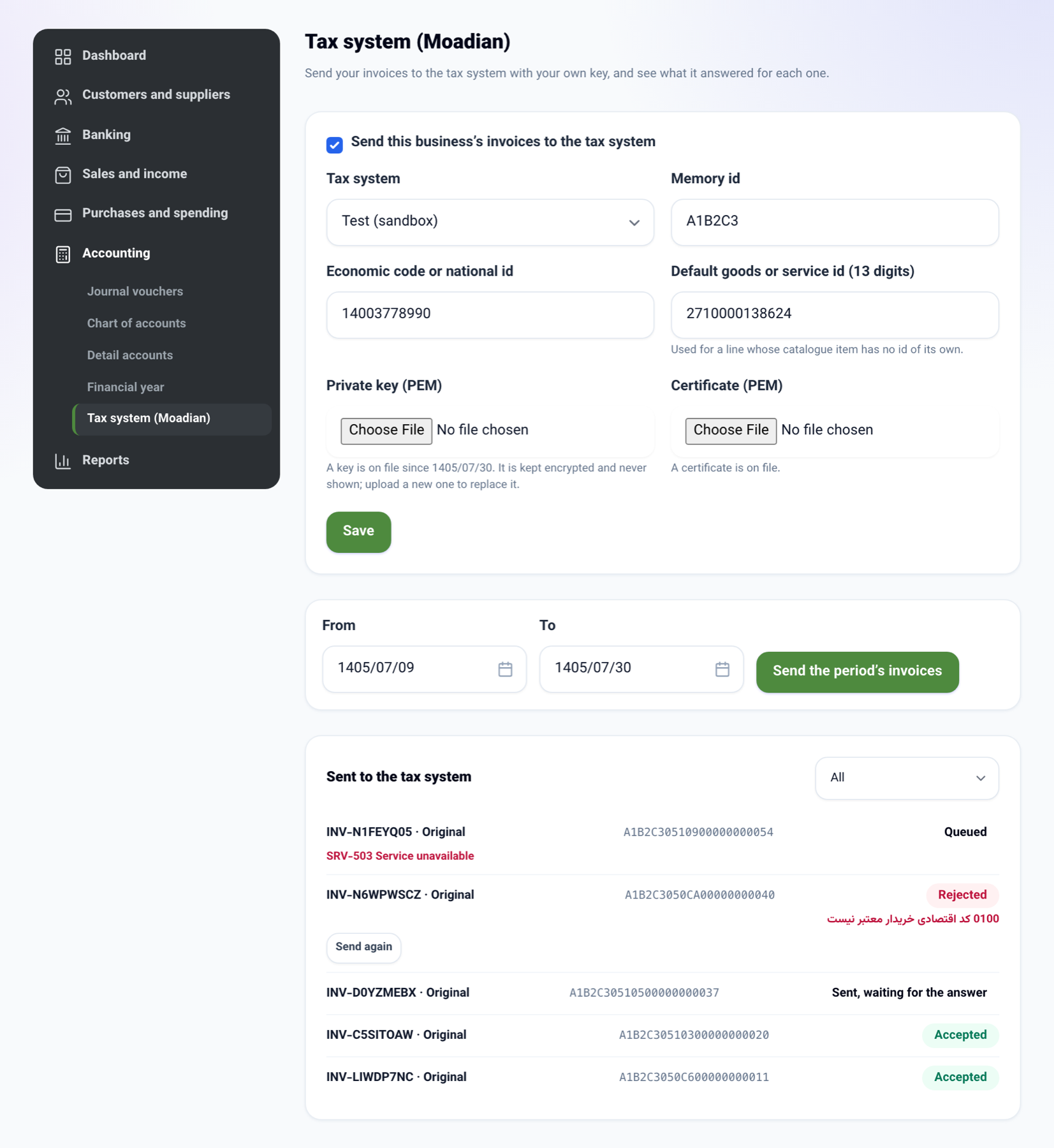
Accounting has a new page, Tax system (Moadian). It is per business and stays off until you turn it on.
- Settings: the memory id, the economic code or national id, the private key and its certificate, and whether to send to the test or the live tax system. The private key is kept encrypted and never shown again; the page only says that a key is on file and since when.
- Goods and service ids: every item in the Product catalogue (NabuCatalog) now has a 13-digit goods or service id and an "Exempt from VAT (Article 9 of the VAT law)" tick. A line with no catalogue item takes the default id from the settings.
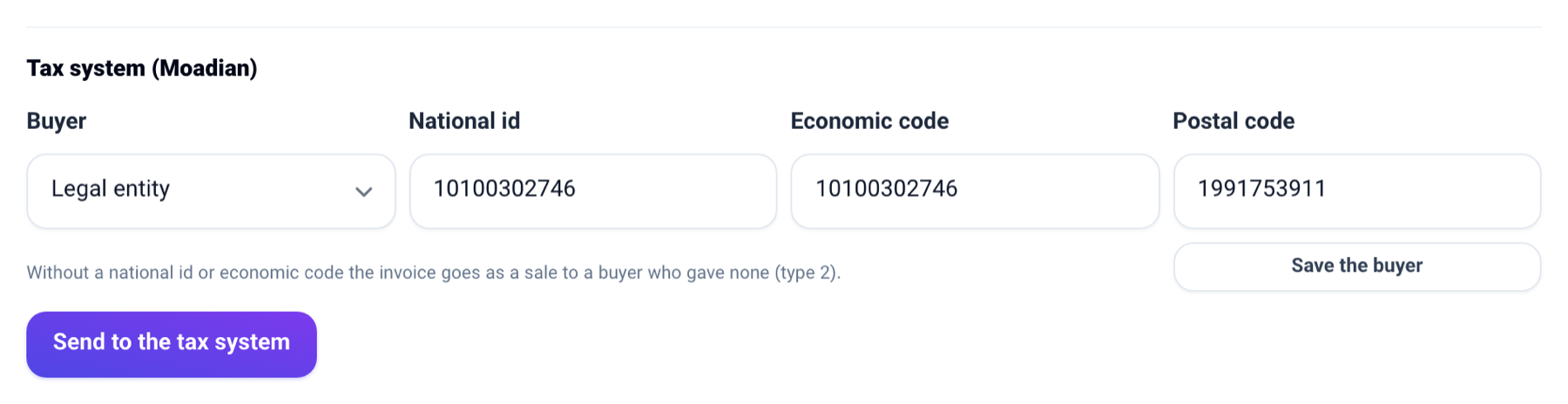
- Sending: on an invoice's panel, the Tax system (Moadian) section keeps the buyer's tax details (buyer type, national id, economic code, postal code), and Send to the tax system signs, encrypts and sends the invoice. Amounts go in rial.
- Status: each submission shows its tax id, where it stands (queued, sent, accepted, rejected) and, when rejected, the tax system's error, with Send again.
- Returns, corrections and cancellations: once the invoice is accepted, each credit note on it can be sent as a return or a correction. An invoice cancelled or credited in full can be cancelled at the tax system.
How to use it
-
Open Accounting, then Tax system (Moadian).
-
Fill in the memory id, the economic code and the default goods or service id, choose the private key and certificate files, and tick sending on. Try Test (sandbox) first.
-
Press Save.
-
Open the invoice from Invoices, save the buyer's details in Tax system (Moadian) if they have an id, and press Send to the tax system.
-
To send a whole period, give the dates on the Tax system (Moadian) page and press Send the period's invoices.
Good to know
- Each document is sent once: pressing the button again, or a retried background job, never makes a second copy.
- If the tax system cannot be reached, the submission stays queued and is tried again by itself. The answer is asked for every ten minutes.
- An invoice whose buyer has no national id or economic code goes as type 2 (no buyer details).
- Only a business that invoices in toman or rial can send. Settings and sending are for seats that manage billing.