Leads and sales discipline — duplicates, assignment rules, lead score, saved views and source cost
A "this may be somebody you already have" warning when a lead is added, and a Duplicates page with merge; rules that say who gets which lead; a lead score by your own rules beside the Predict score; saved views of the contacts list; bulk tag removal and custom-field filling; each source's cost and return; the deal amount in automations; a review queue for forms; and parent companies.
Product update 3 min read
What changed
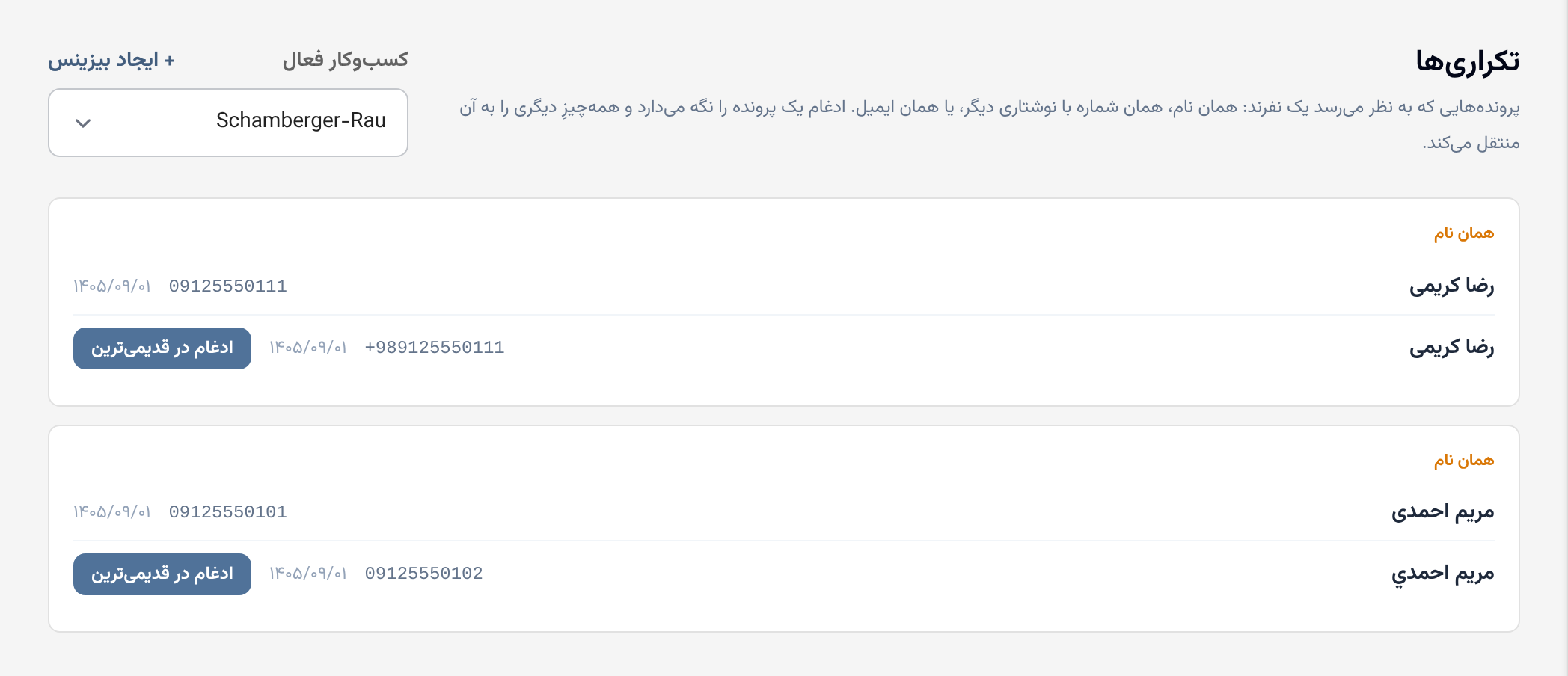
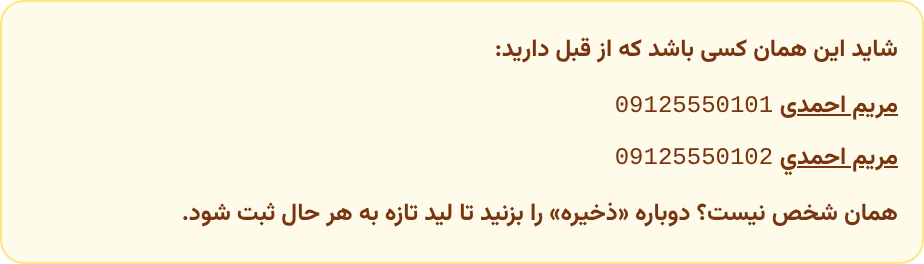
- Duplicates. When you type a similar name, or a number that differs only in how it is written or in its last digit, in Contacts → Add a lead by hand or in Capture a lead, a This may be somebody you already have: box lists the files with links; if it is someone else, press Save again. The new Duplicates page puts every set of files that look like one person side by side, and Merge into the oldest is the customer file's own merge.
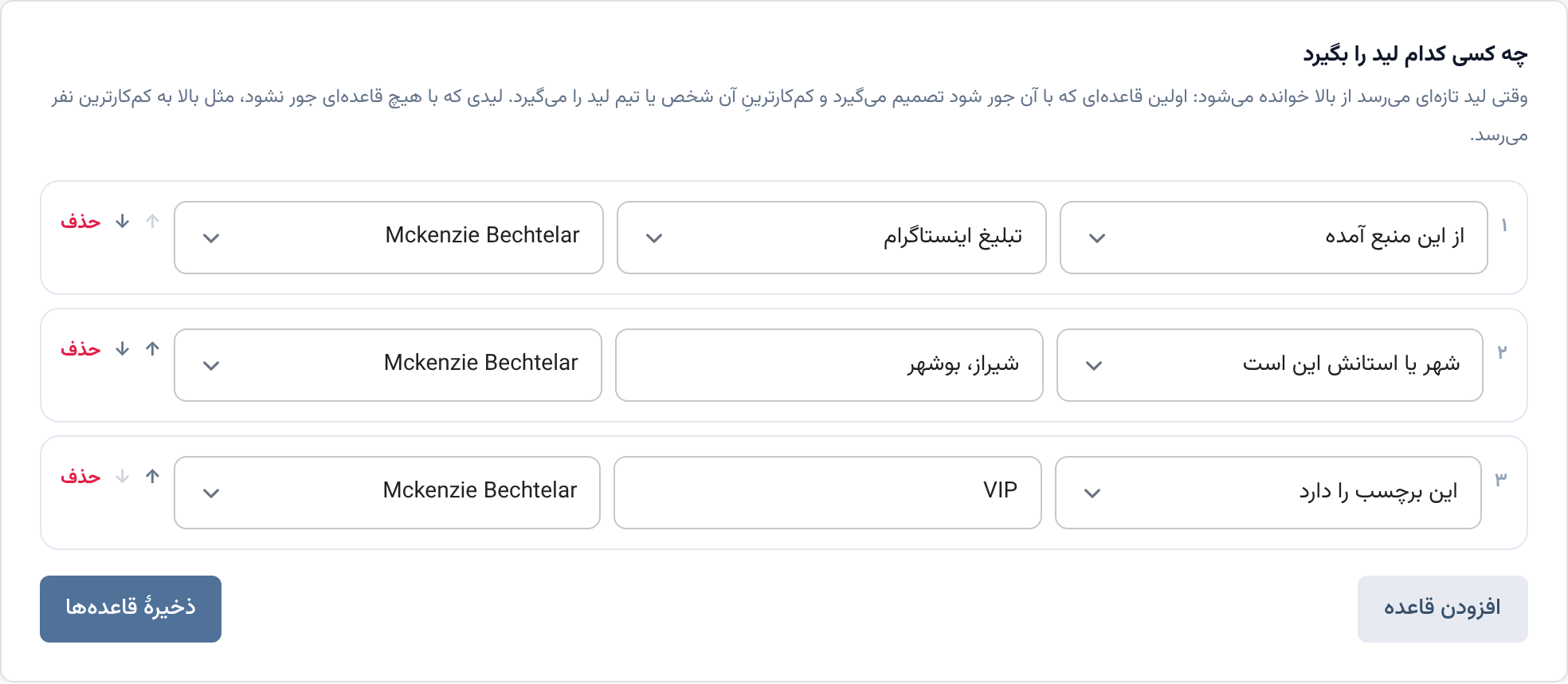
- Who gets which lead. On Lead rules, add rules: came from the source, filled in the form, city or province is, bought or asked about the product, or has the tag → one person or "a manager and their team". Rules are read from the top; a lead no rule matches goes to the least busy person, as before.
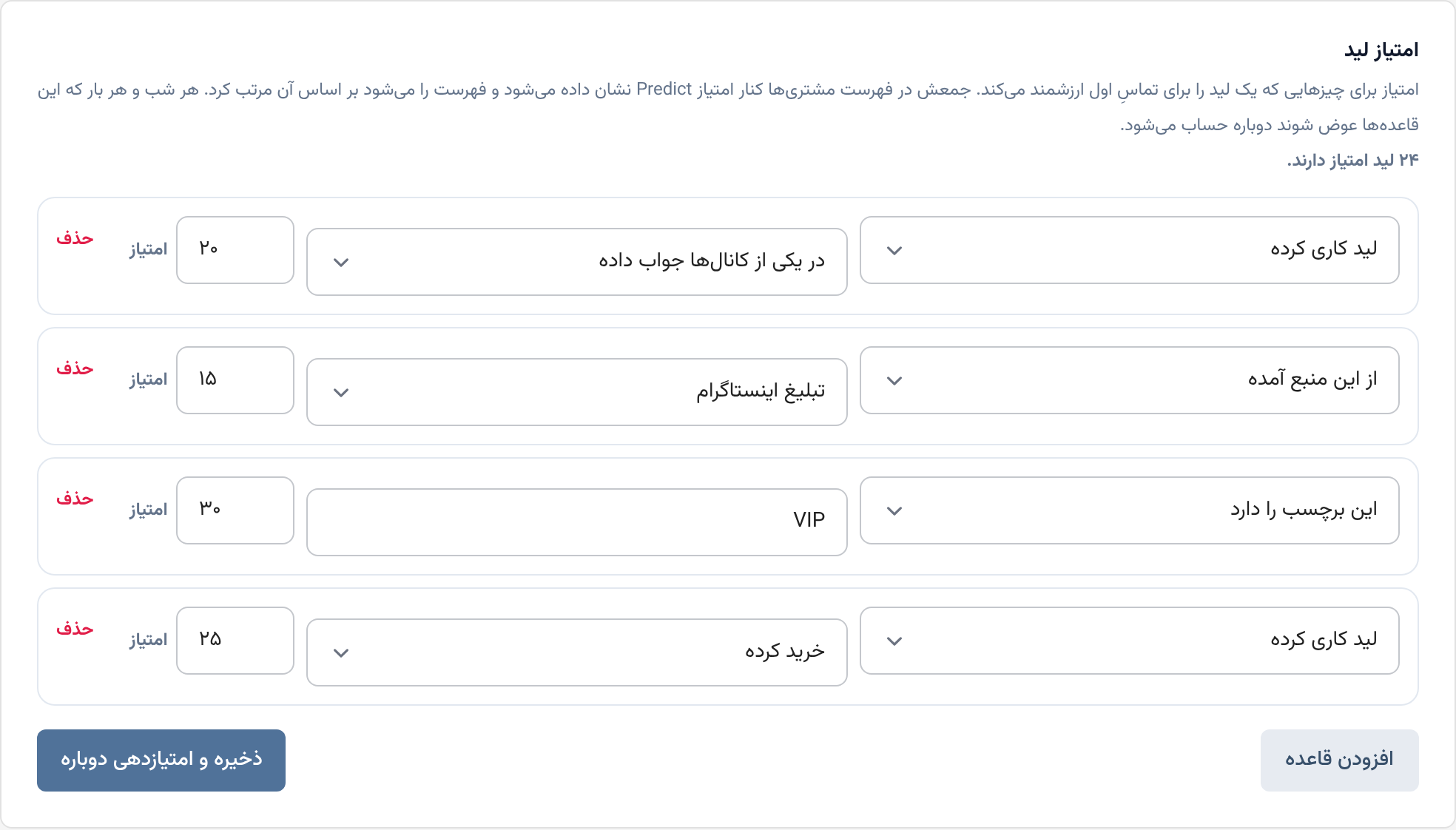
- Lead score. On the same page, Lead score: give points for a source, a tag, a custom-field answer, or something the lead did (wrote back, was called, opened an email, had a meeting, bought). The score shows on the contacts list beside Predict's buying chance, and Highest lead score first sorts by it.
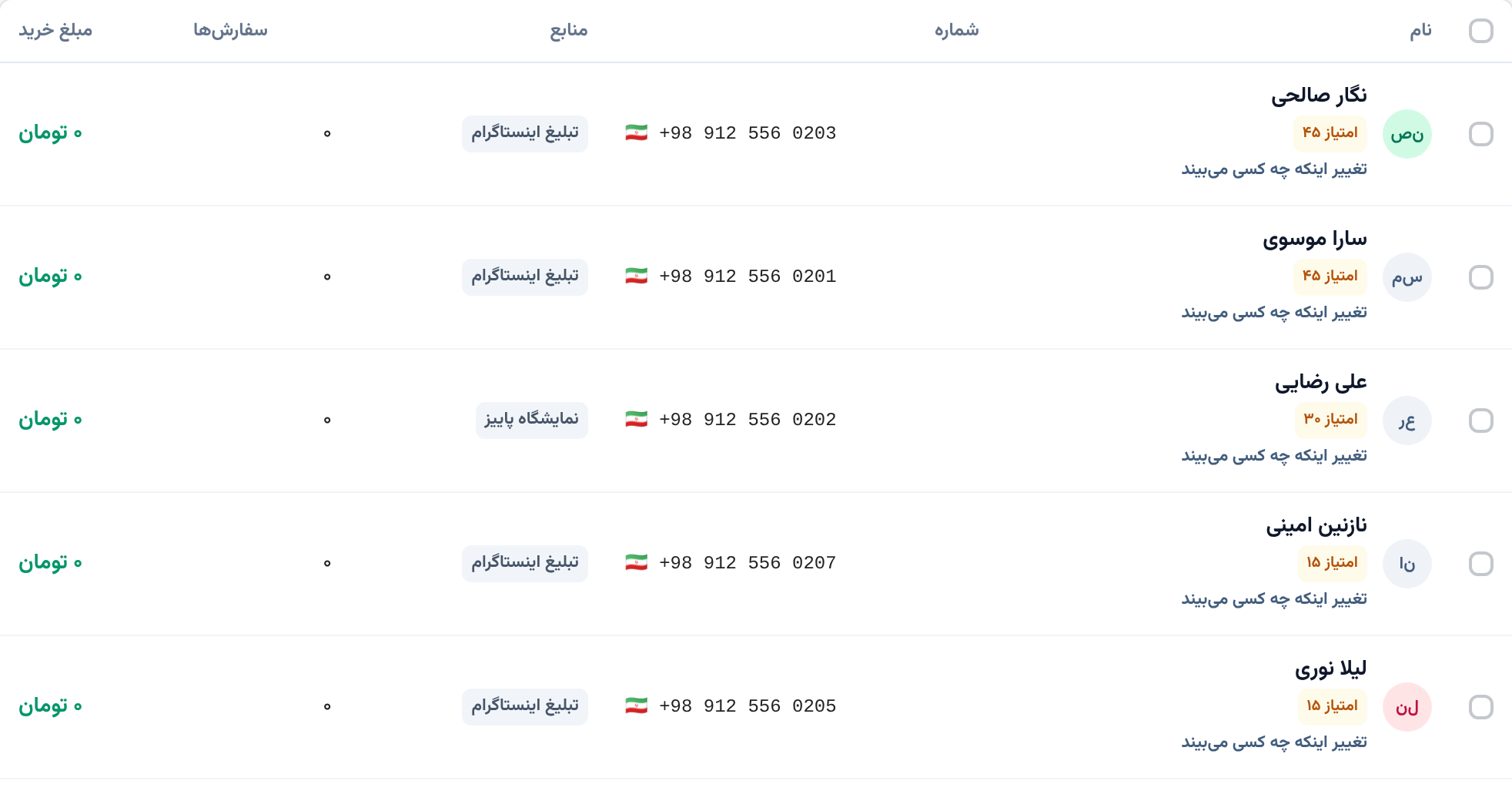
- Saved views. Save the contacts list's filters under a name, for yourself or, with Share with the team, for everyone; one click brings them back.

- Bulk edit. The bulk bar has two new changes: Remove tag and Set a custom field; each change is written on every lead's history.

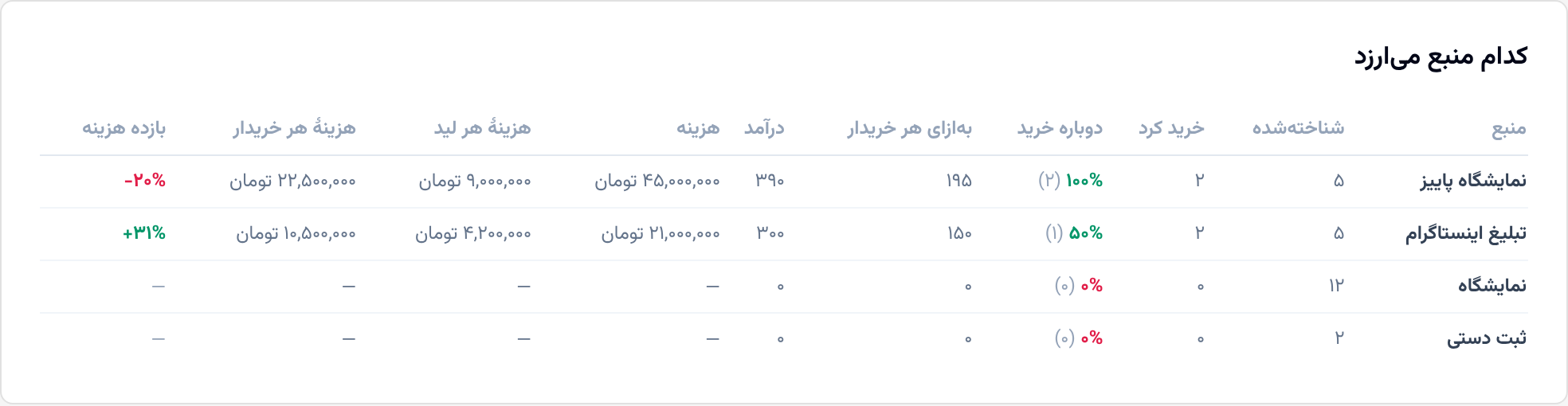
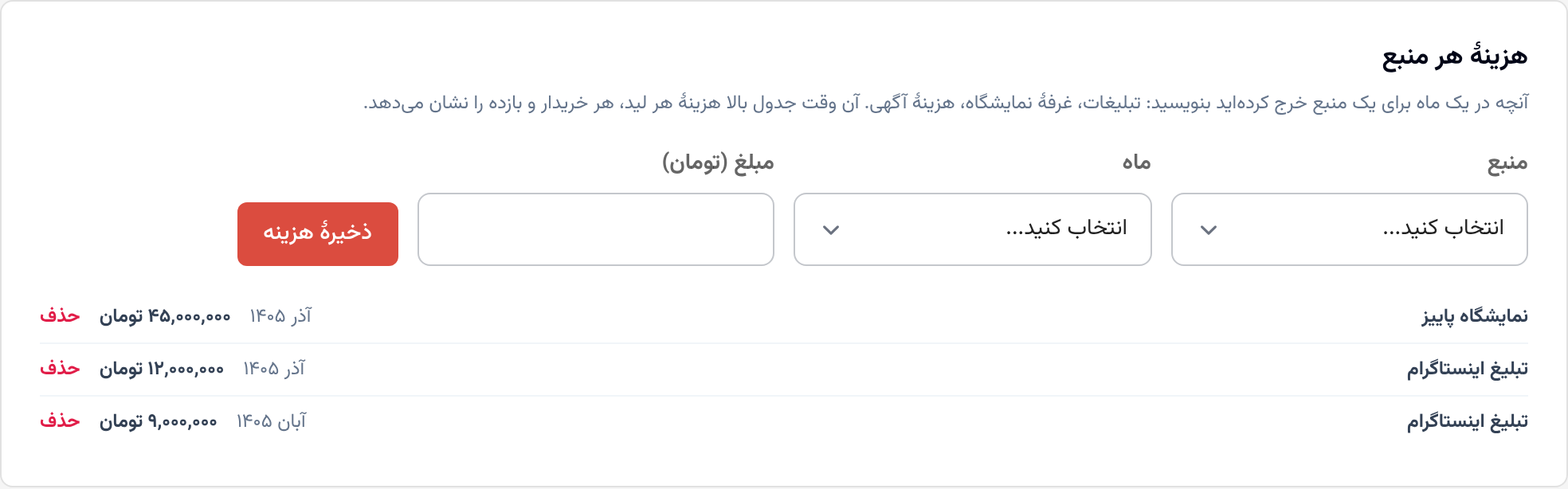
- What each source cost. Fill in What each source cost on Customer insights; the Which source is worth it table now also shows the cost, cost per lead, cost per buyer and the return on cost.
- Big-deal alert. The won and stage-changed events now carry the deal amount (in USD and in the business's currency), so an automation can test a threshold. A ready template, Alert the owner when a big deal is won, was added.

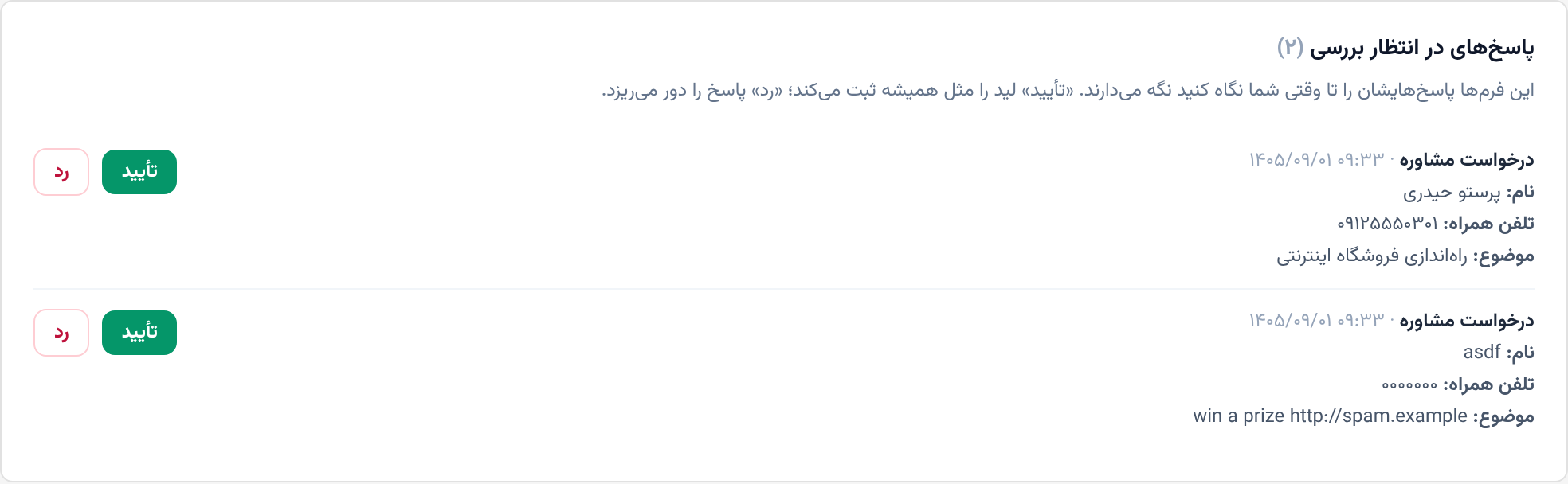
- Form review queue. Tick Hold submissions for review in the form builder; answers wait under Answers waiting for review: Approve files the lead as usual, Reject discards the answer.
- Parent company. A company can belong to another; the parent lists its companies.
How to use it
- Contacts → Duplicates: look at each group and press Merge into the oldest.
- Contacts → Lead rules → Who gets which lead: Add a rule, pick the condition and the person, then Save the rules.
- Same page → Lead score: write the rules and their points, then Save and score again.
- Contacts: set the filters, type a name in Name this view and press Save view.
- Customer insights → What each source cost: pick the source and month, enter the amount and press Save the cost.
- Automations → Alert the owner when a big deal is won → Use this template; set the amount and switch the rule on.
- Form builder (NabuForm) → edit a form → Hold submissions for review → Save the form.
- Companies → Edit → Parent company → Save changes.
Good to know
- The duplicate warning only names this business's own files, and never stops the save.
- Assignment rules only route leads as they arrive; a lead that already has an owner is left alone.
- Scores are counted again every night.