Deals and their paperwork, a print template, sales orders, letters and contracts, and what each pipeline stage requires
Estimates, proposals and invoices now belong to the deal, and a deal's products are picked from the catalogue. Invoices and estimates print with your logo, stamp, signature and footer, an accepted estimate becomes a sales order that holds stock back, letters and contracts fill from any customer file, a pipeline stage can ask for fields or a checklist, and the pipeline report shows a manager's own forecast and what moved since last week.
Product update 3 min read
What changed
- Each deal lists its documents. In a customer file, tab Opportunities and money, every deal shows its estimates, proposals and invoices with number and status. New estimate from this deal (or New proposal from this deal) makes one with the same products and prices, and the invoice raised from it stays linked to the deal.

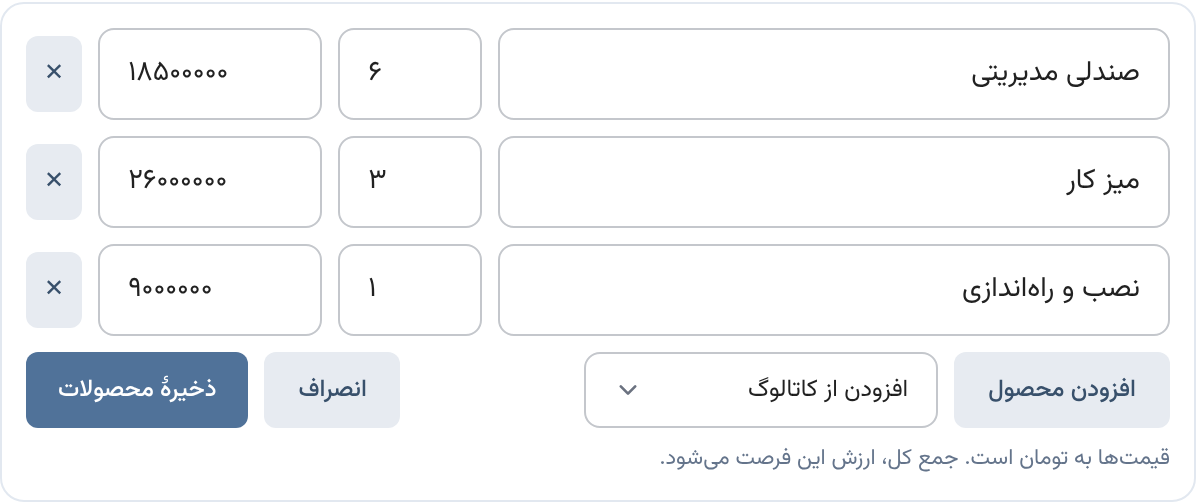
- Deal products from the catalogue. In a deal's Products, Add from the catalogue adds an item at this customer's price-list price and keeps the item on the line.
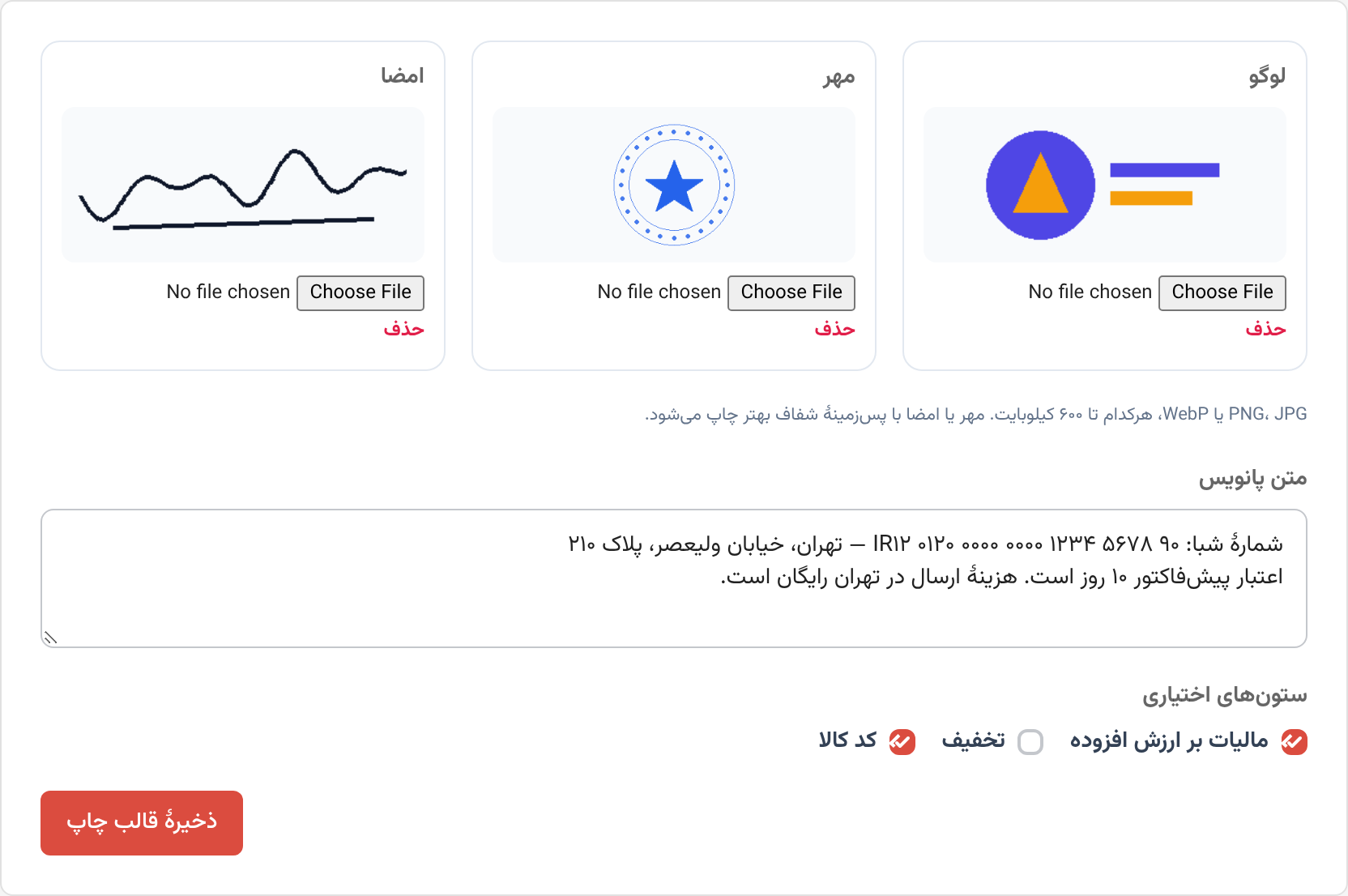
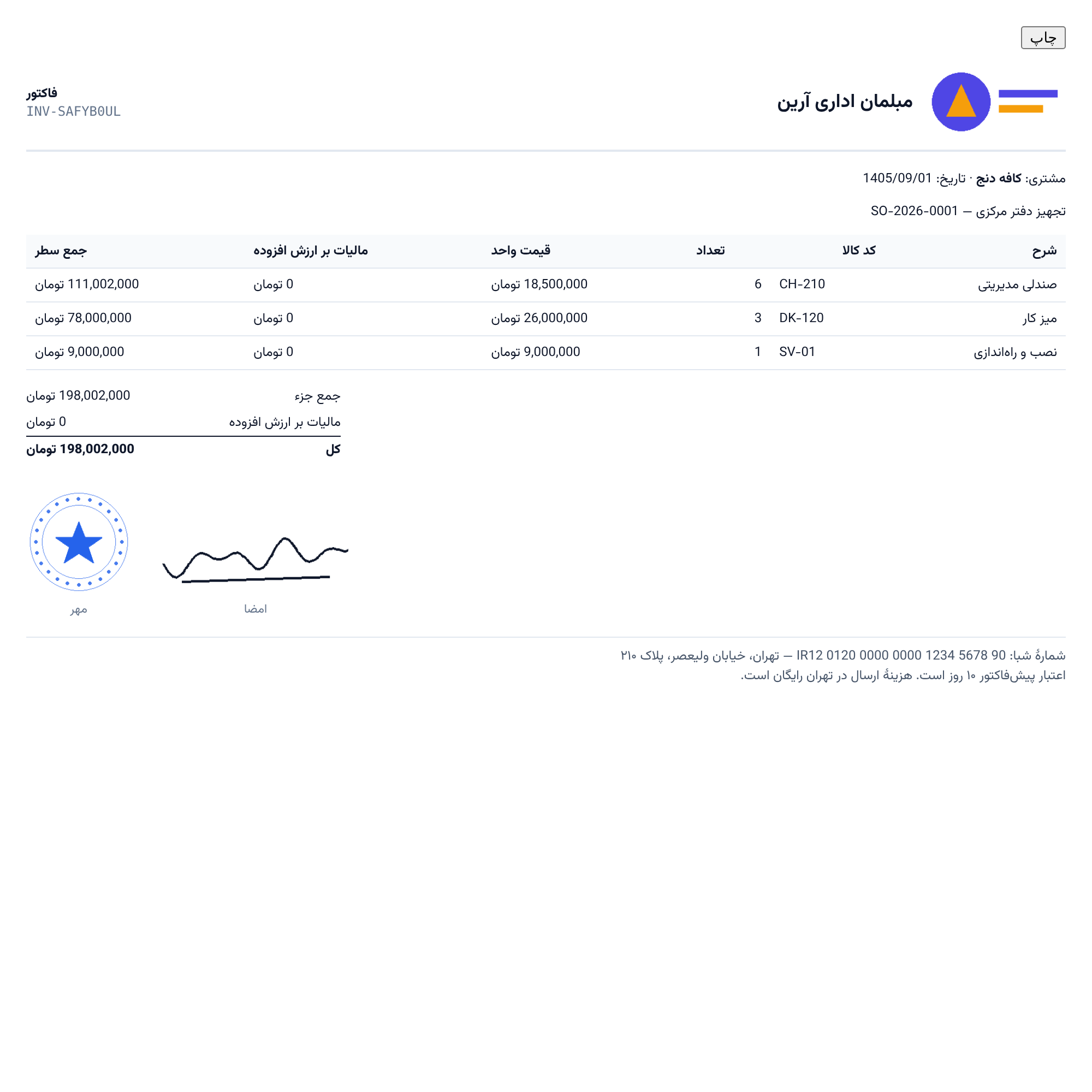
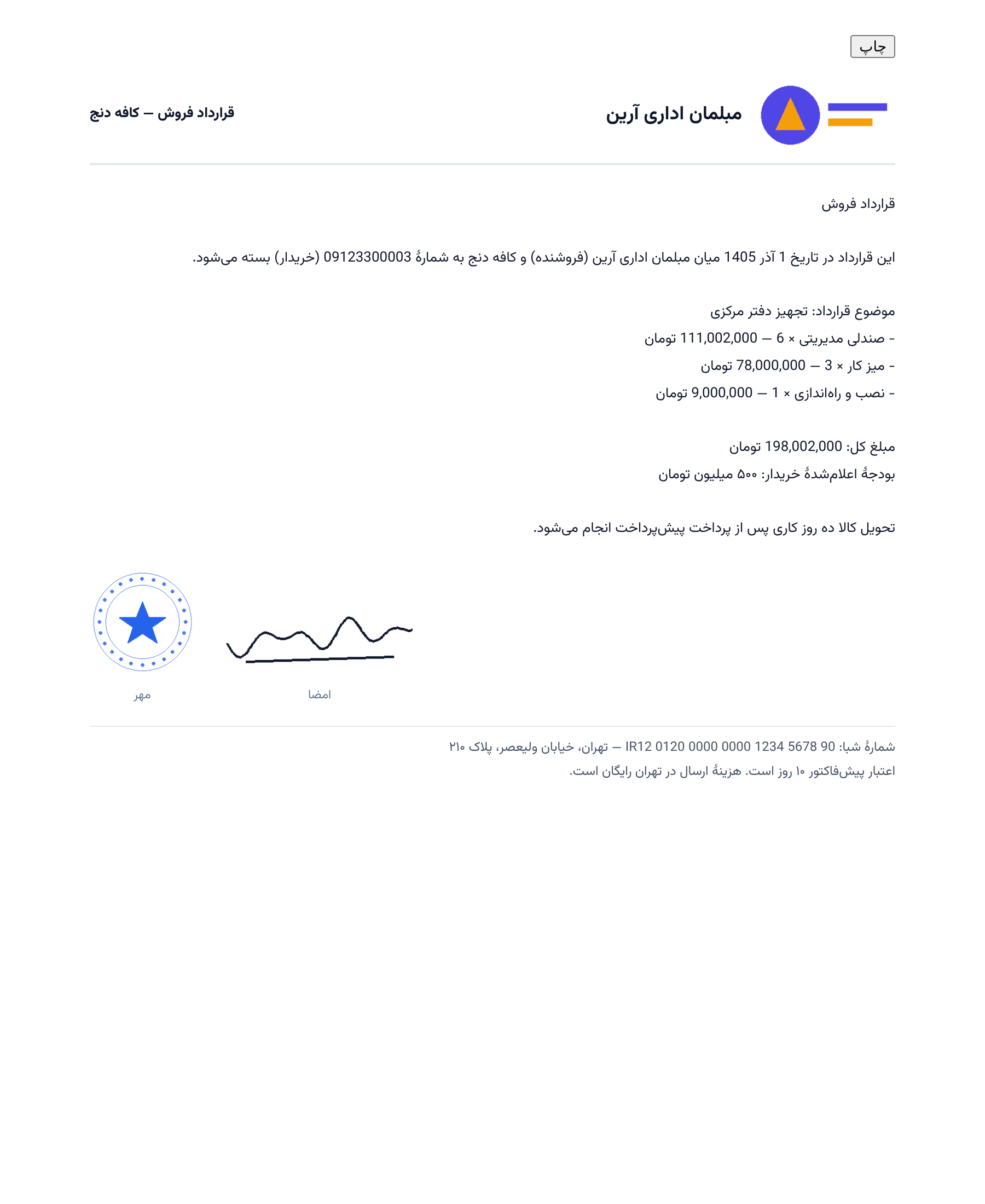
- Print template. Invoices → Print template: logo, stamp, signature, footer text and optional columns (VAT, discount, SKU). The invoice (a new Print button on every invoice), the tax invoice, the customer's estimate page and the portal invoice all wear it.
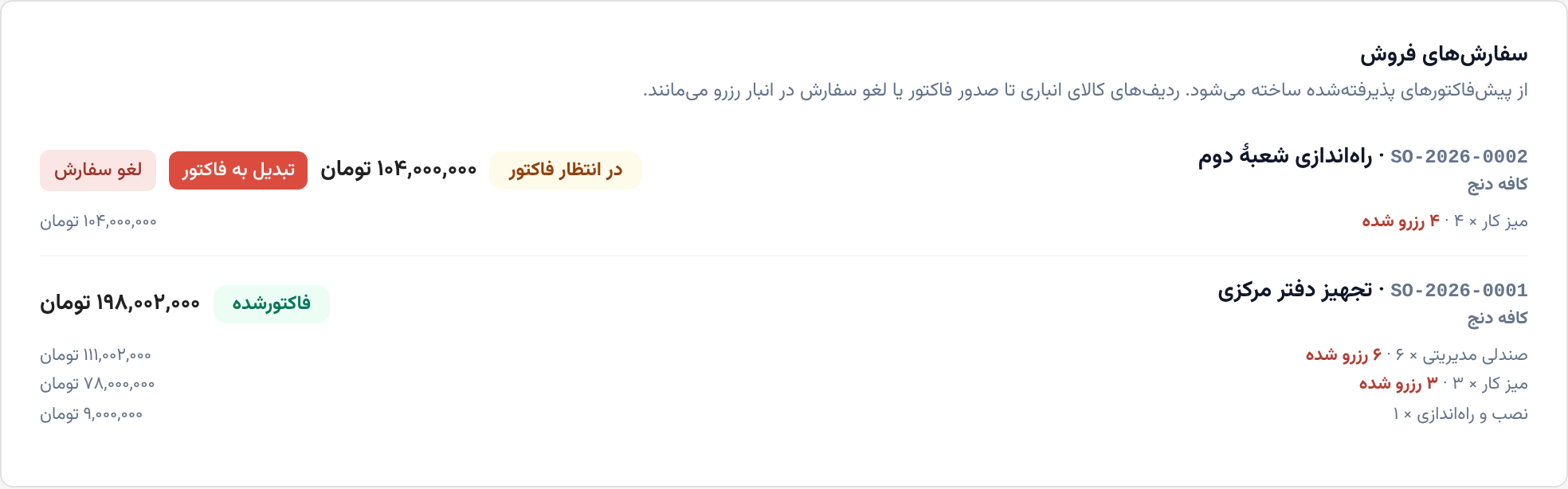
- Sales orders. In Estimates, an accepted estimate has Make a sales order. Its stock-tracked lines are reserved in stock at once; Turn into an invoice bills it line by line, and Cancel order puts the stock back.
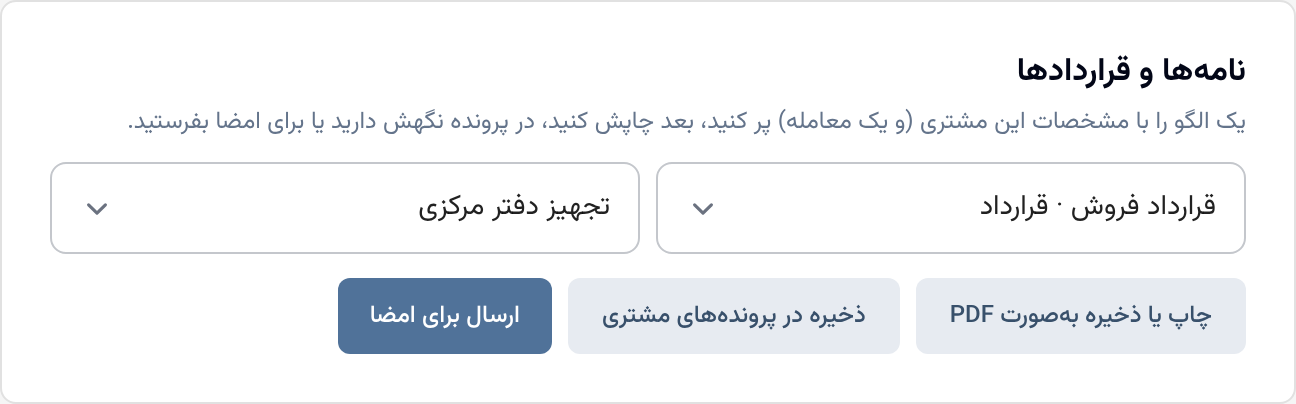
- Letters and contracts with placeholders. Proposals → Letter and contract templates: write the text once with placeholders such as
{{profile.name}},{{company.name}},{{opportunity.title}}and{{business.name}}. On the Opportunities and money tab, Letters and contracts fills it with the customer's (and a deal's) details: Print or save as PDF, Save to the customer's files or Send for signature.
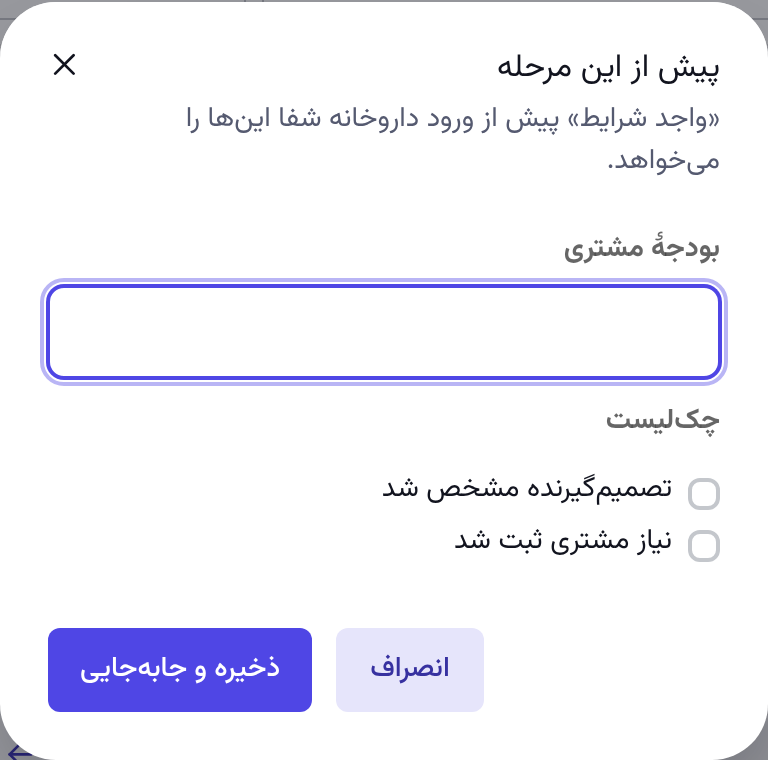
- What each stage requires. In the Pipeline report, Required before entering a stage takes required fields and a checklist per stage. A card moved there by hand waits until they are done; the board asks for them in the move and Save and move finishes it.

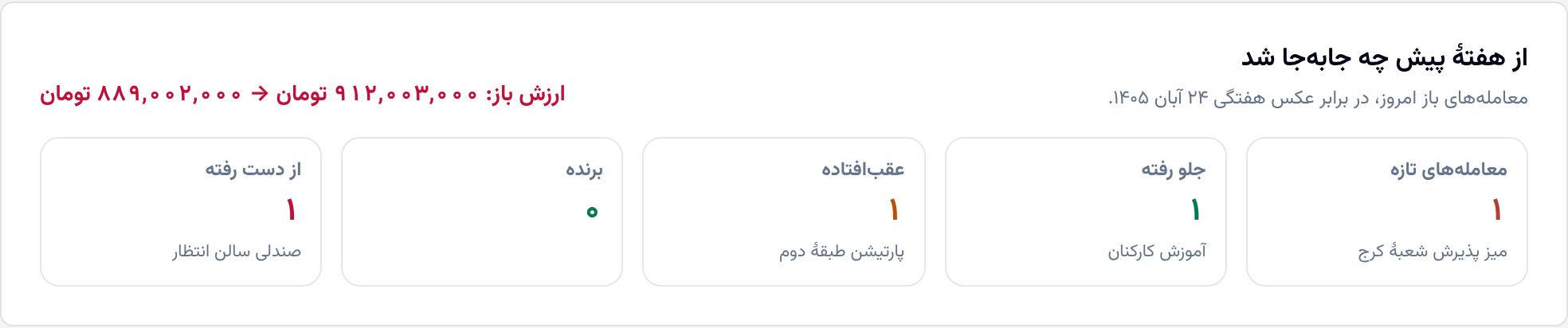
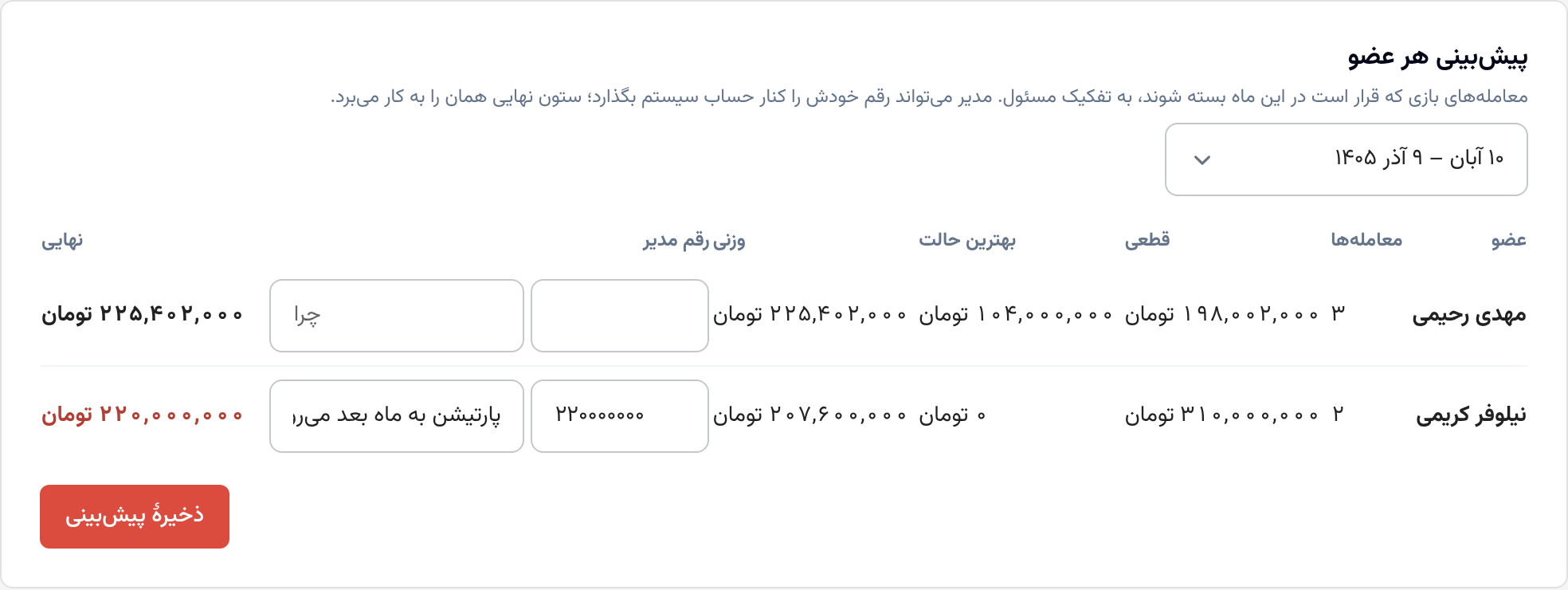
- A manager's forecast and the weekly picture. In the Pipeline report, Forecast by member adds up each owner's open deals for the month, and a manager can put their own figure beside it. Every Saturday morning the open deals are pictured, and What moved since last week shows the new deals, the ones that moved forward or slipped, and those won and lost.
How to use it
- Invoices → Print template: upload the logo, stamp and signature, write the footer, pick the columns and press Save print template.
- In a customer file, tab Opportunities and money: press Products on a deal and use Add from the catalogue; then New estimate from this deal.
- Once the customer accepts, press Make a sales order in Estimates, then Turn into an invoice under Sales orders.
- Proposals → Letter and contract templates: make a template, then fill it from Letters and contracts in a customer file.
- Pipeline report → Required before entering a stage: choose fields and a checklist per stage and press Save requirements.
Good to know
- The PDF is the browser's "Save as PDF"; the copy kept on the customer's files is that same page as an HTML file.
- Stage requirements hold only moves made by hand; a lead arriving from a form, an import or a campaign is not held.
- An estimate with an open sales order cannot be invoiced on its own, so reserved stock is never left stranded.