Accounting reads like a ledger, and vouchers get their tools
Figures in the accounting tables lose the repeated currency mark, show a dash for zero and brackets for a negative; the trial balance splits the closing balance into debit and credit and says whether it agrees; vouchers show live totals and can be balanced, copied, reversed and printed.
Product update 3 min read
What changed
The money figures in Accounting used to carry the currency on every cell, print «0» where a book shows a dash, and a negative could appear with its minus sign on the wrong side in a Persian line. They now read the way a ledger does.
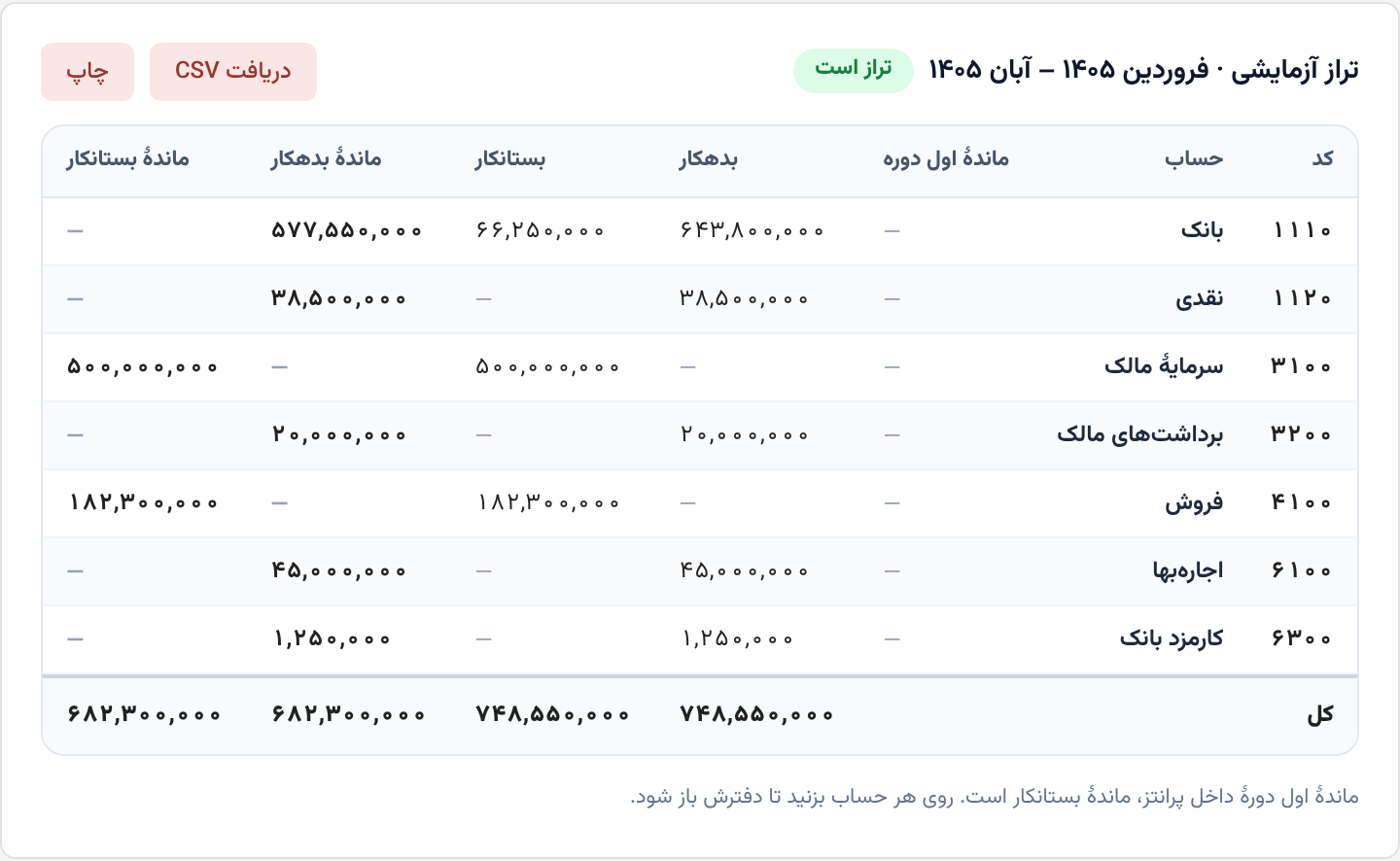
- The currency is named once. "Amounts in Toman" sits above each table; the cells hold only the figure, lined up on one edge.
- Zero is a dash, a negative is in brackets and red, and it can no longer flip in a right-to-left line.
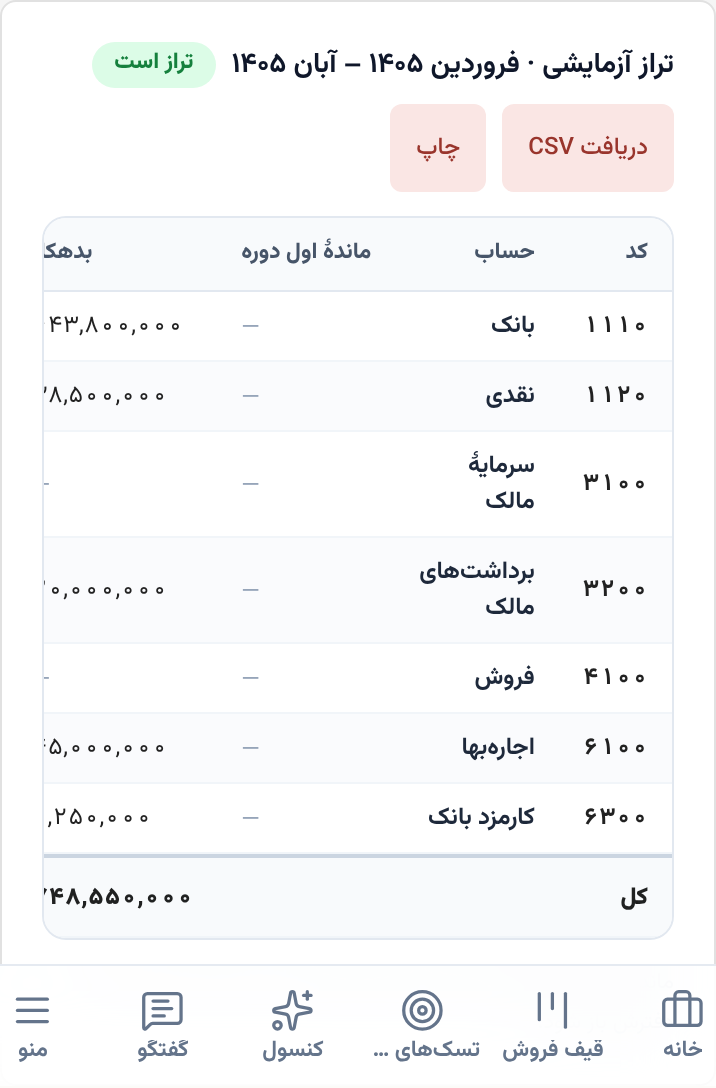
- Trial balance: the closing balance has a debit column and a credit column, both totalled, and a badge says Balanced or how far out the books are.
- Tables stay inside their box. On a phone a wide table scrolls on its own instead of running off the screen; headers stay in view and rows are banded.
- The period is chosen from month menus instead of being typed as «1405-01».
- The standard accounts Personal current accounts and Statement suspense now show in your language.
Voucher tools
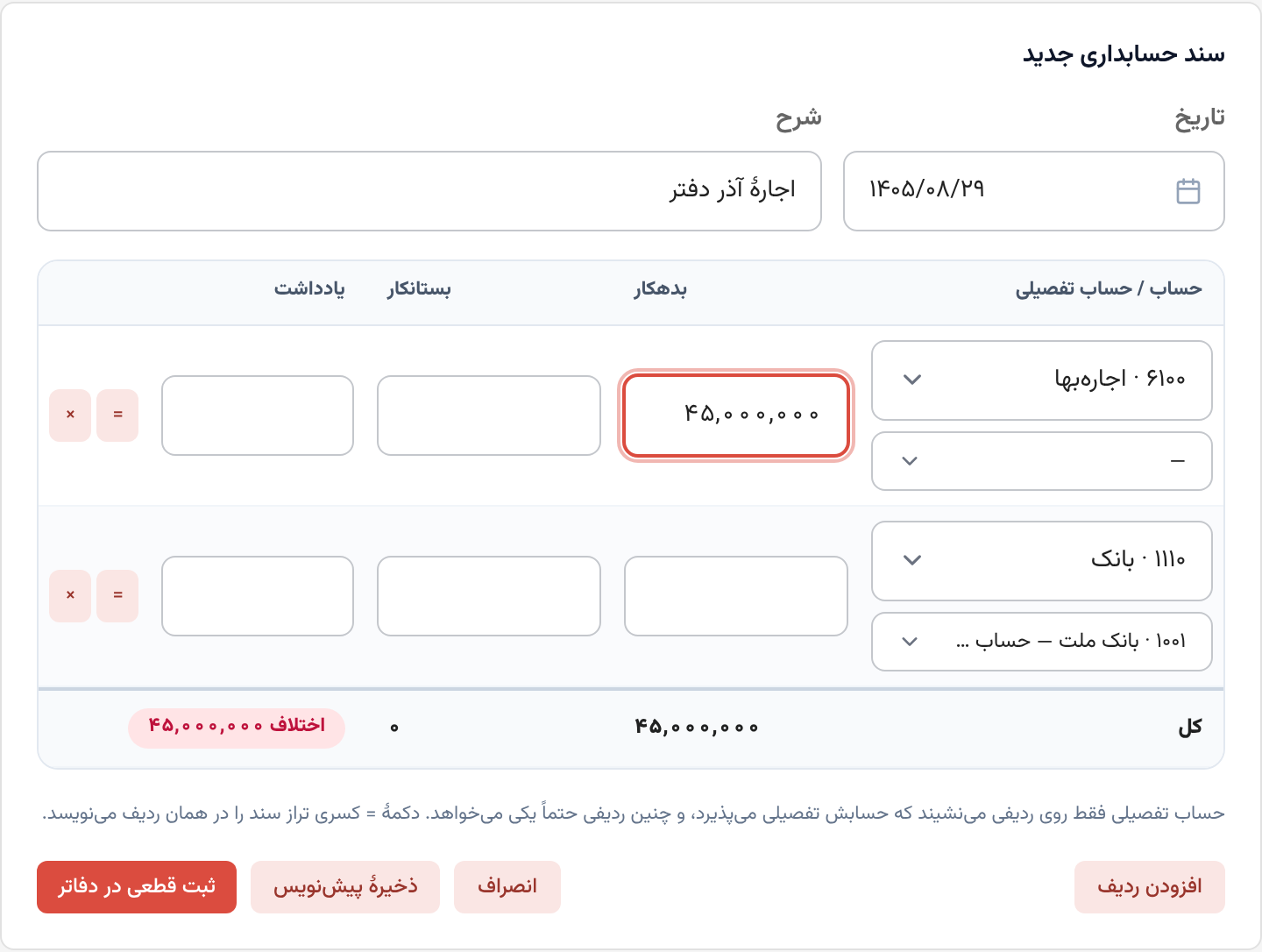
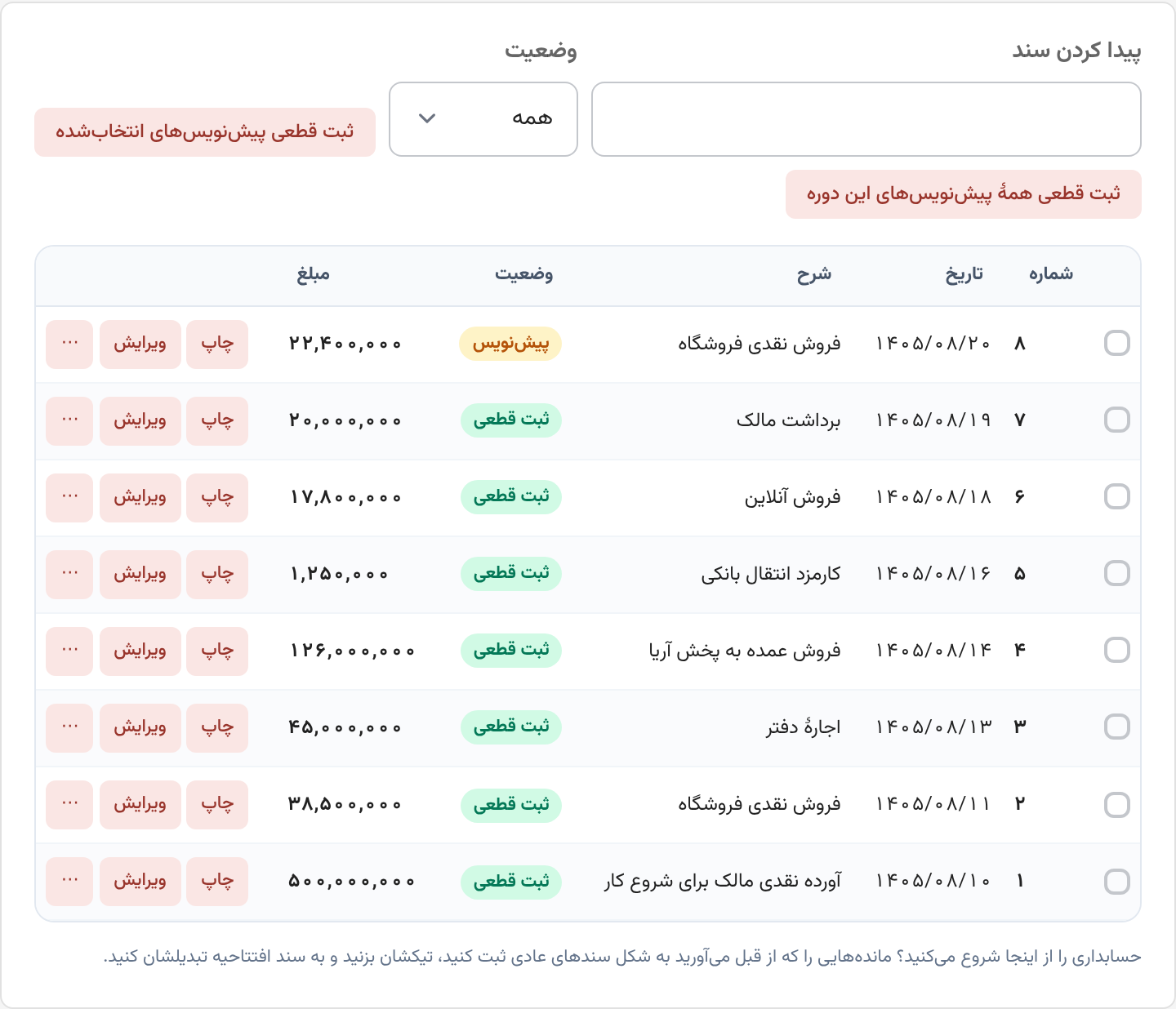
- Live totals. While you type a voucher, the debit and credit totals and the difference are shown under the lines.
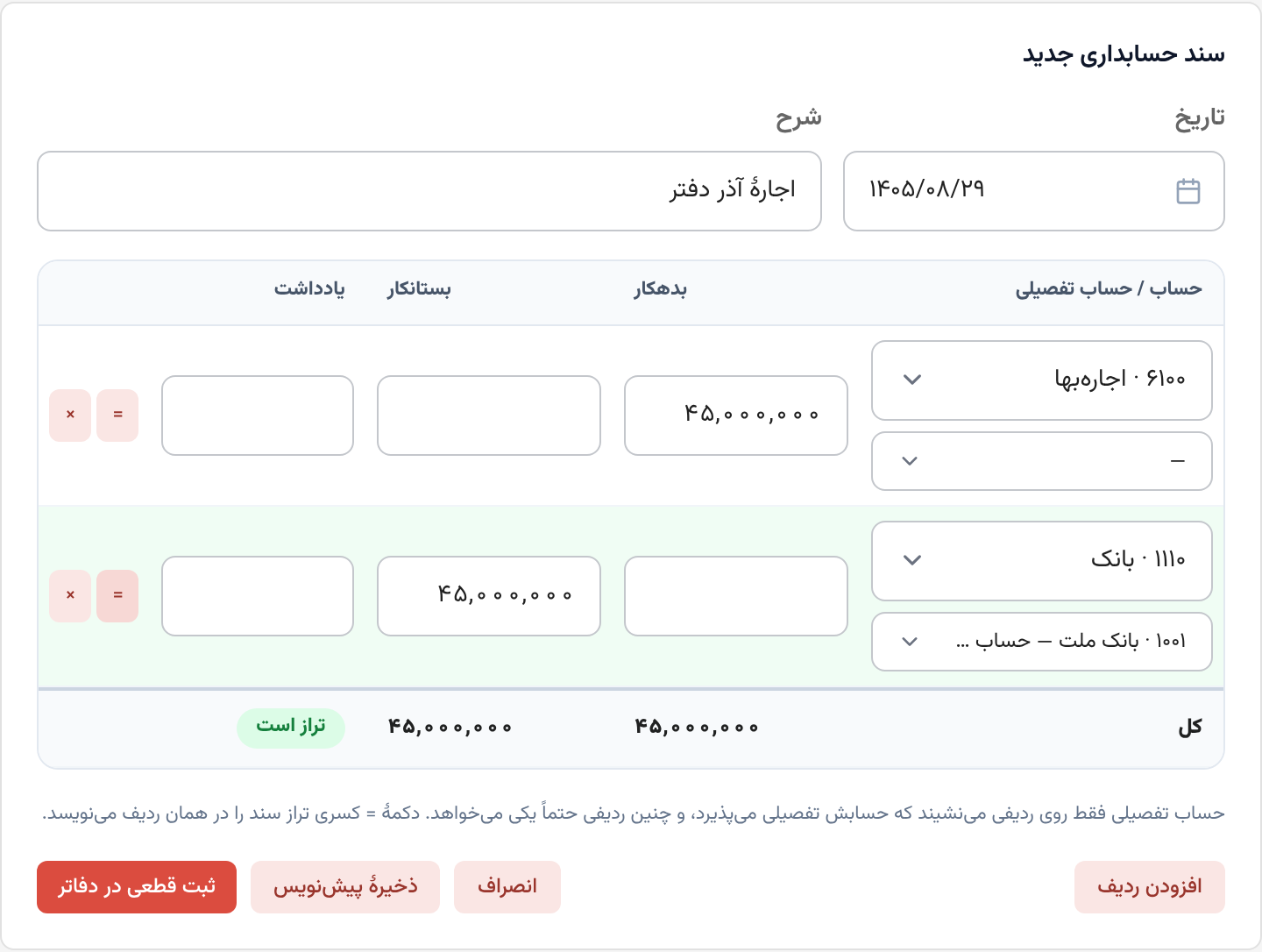
- = on a line writes into that line whatever the voucher still needs to balance.
- Duplicate and Reverse (under ⋯ on a voucher's row) make a new draft dated today: a copy, or the same lines with debit and credit swapped.
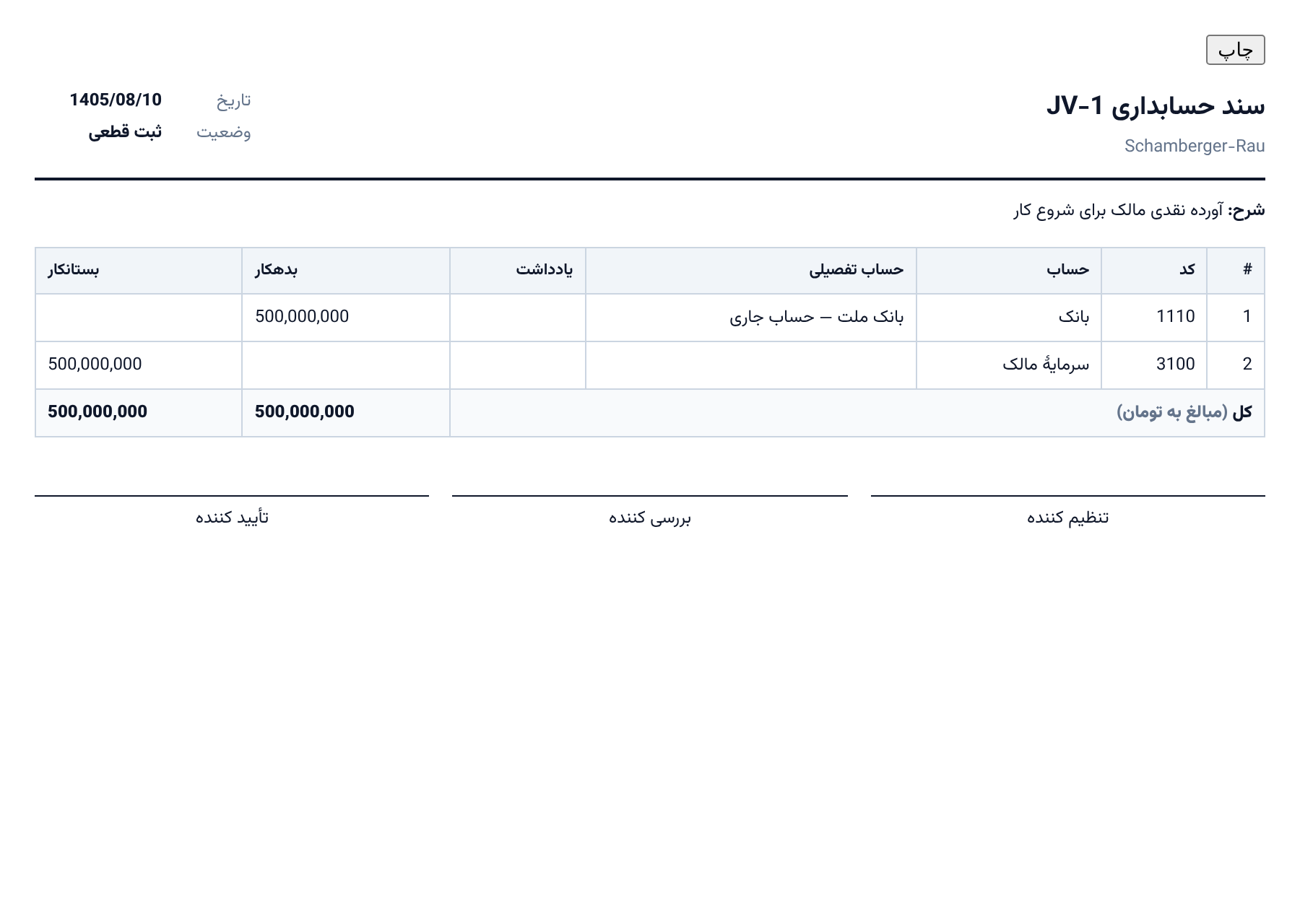
- Print opens the voucher as a page to print or save as PDF, with boxes for who prepared, checked and approved it.
- Download CSV and Print on the trial balance and on an account's ledger.
- The voucher list filters by status (draft or posted), and saving, posting and deleting a voucher is written to the change log.
How to use it
- Open Accounting and pick the months in From month and To month.
- To type a voucher, press New journal voucher, fill the lines, and press = on the last line to balance it.
- On a voucher's row, press ⋯ for Duplicate, Reverse or Delete, or Print to print it.
- On Trial balance or Account ledger, press Download CSV or Print.
Good to know
- A copy or a reversal is always a draft; nothing reaches the reports until you post it.
- A reversal of a voucher in a closed year is dated today, so it lands in the open year.
- The trial balance on a phone: