Meeting mode in the voice assistant: record a meeting, get its full transcript on the project
A Record a meeting button now sits beside the microphone at the top of the page. In this mode the assistant says nothing and only records. When the meeting ends you pick the project, and draft minutes with a summary, decisions, action items and the full transcript are written on it. The voice assistant also no longer flashes open and shut as each page loads.
Product update 3 min read
What changed
Until now the voice assistant at the top of the menu was for giving commands: you spoke and it answered. In a meeting that is the last thing you want. It now has a second mode:
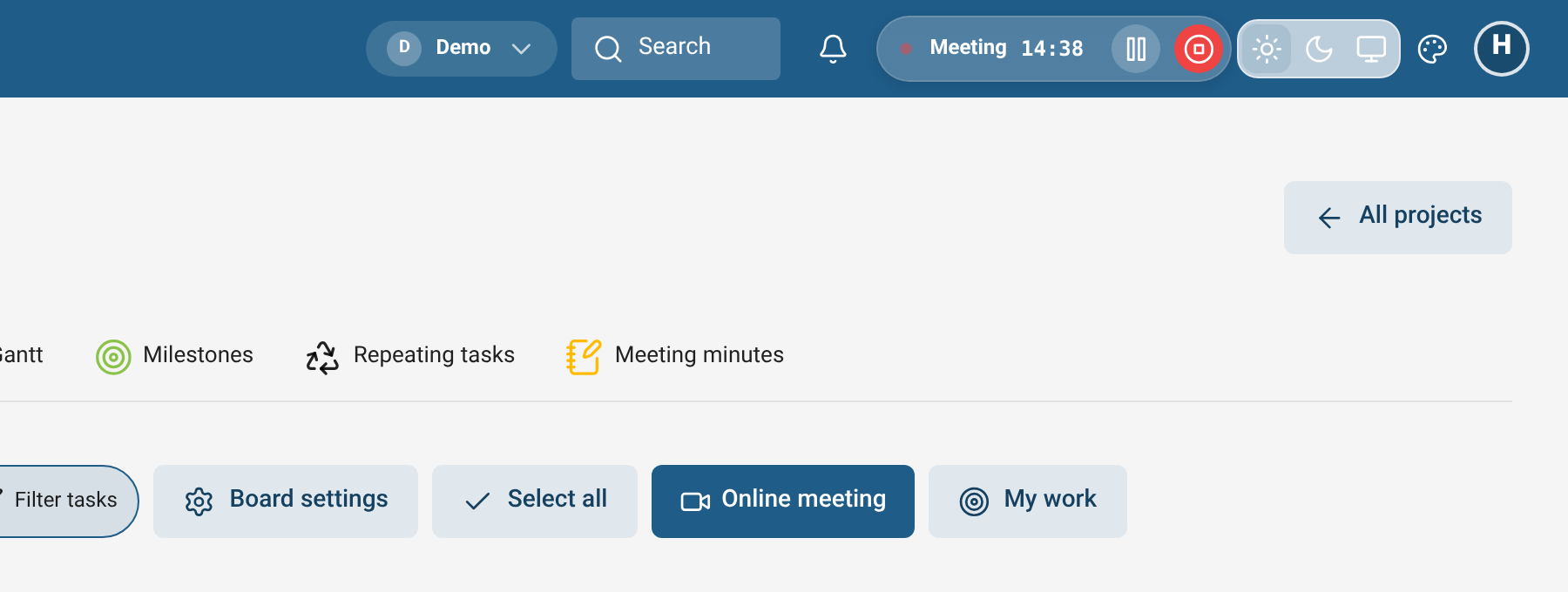
- A Record a meeting button sits beside the microphone. Press it and the assistant switches to meeting mode: a red dot, the word "Meeting" and the meeting's clock, with Pause and Stop recording beside them. It answers nothing until the meeting is over.
- Saying it works too. Tell the voice assistant "record the meeting" or "meeting mode" and it switches by itself.
- Long meetings arrive whole. The audio goes to the server in five-minute parts, and each part is transcribed as it arrives, so a two-hour meeting does not leave you waiting on one huge file at the end. If the connection drops, the parts wait and go up once it is back.
- Move between pages. Opening another page does not stop the recording. If you reload or close the tab, the browser asks first; and if a recording was cut off, you see "A meeting recording was interrupted. What was recorded is safe." and can carry on with the same meeting or save it.
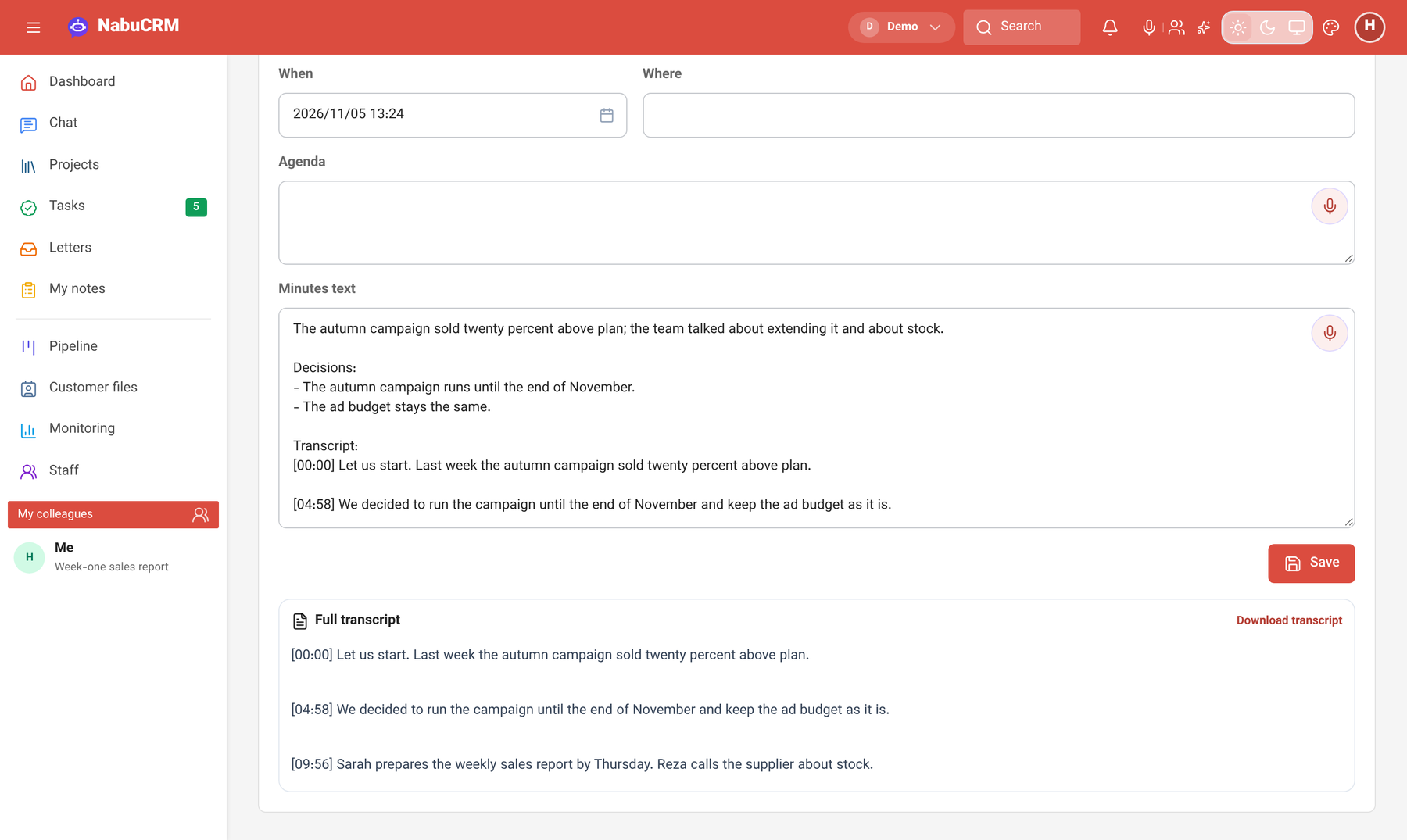
- On the minutes page there is a Full transcript section: everything said in the meeting, each part marked with the time it started, and a Download transcript button for a text file.
How to use it
- On any page of the panel, press Record a meeting (the two-people icon beside the microphone at the top) and allow the microphone. On a project's page, that project is already picked.
- Hold your meeting. Press Pause to pause it and Resume to carry on.
- At the end, press Stop recording. The Meeting window opens: "Pick the project the minutes go on." and press Save. If you stopped too early, Resume carries on with the same meeting; Delete throws the whole recording away.
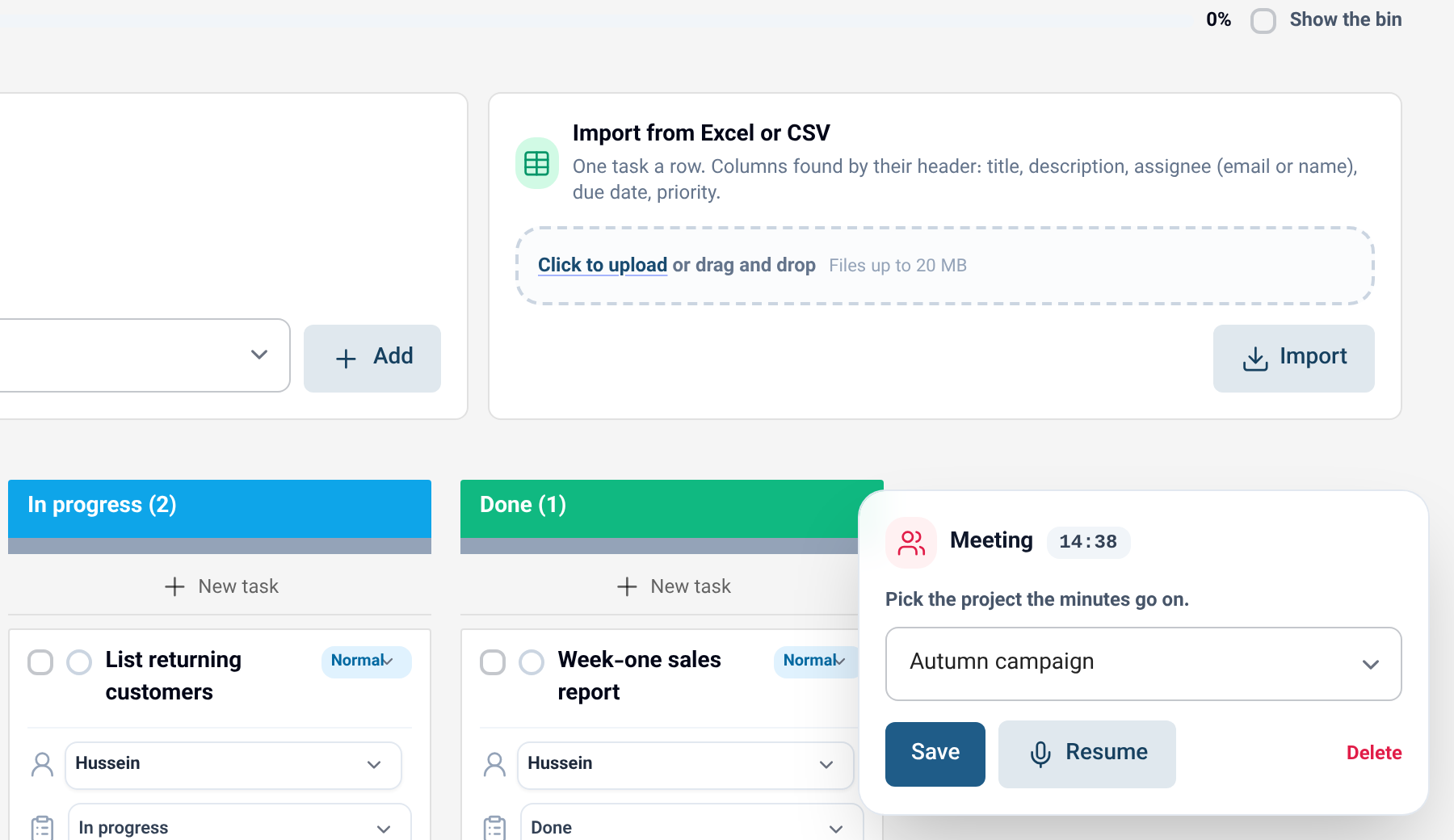
- A few minutes later the draft minutes are ready on the project and you are notified. The Meeting minutes button in the same window takes you there. Review the draft, give the action items to their people and finish the minutes.
Good to know
- Meeting mode is for seats that may change tasks in this business, on accounts that include Minutes. The minutes go only on a project you can open and change.
- Transcription uses the business's AI credit. A meeting can have up to 60 five-minute parts (close to five hours); after that the recording stops by itself.
- A live call with the voice assistant hangs up when a meeting starts, and its button stays hidden until the meeting ends, so the assistant never talks over the room. The live call window has a Record a meeting button too.
- The voice assistant no longer shows all its states (waveform, timer, "Processing…") for a moment as each page loads. The Resume button, which looked blank after pausing a voice note, now shows its microphone.
- In the Material theme (Android), the iOS theme and the Odoo theme the voice assistant has its own row in the sidebar, so meeting mode fits and the account button is no longer cut off.